This is earlier work from Istation, which makes reading assessment and instruction software for schools. The problem didn’t come from a roadmap. It came from teachers telling us the data from their youngest students was wrong.
Problem
The project started with conversations with Pre-K and kindergarten teachers about using Istation with very young students. I interviewed five of them, and they were frustrated.
The thinking at Istation was that students this age would already be comfortable with technology. That was true for some of these teachers’ students. But an alarming number had their first ever interaction with a computer when they took their first Istation assessment.
The assessments assumed every student could use a mouse. For a 4 year old, that’s a hard motor skill. During assessments, teachers were moving around the room helping students one at a time, and the data we collected from this age group was inaccurate.
If a child can’t drag the answer into place, the assessment can’t tell whether they knew it.
That turned a classroom complaint into a product question: how might we improve the accuracy of the data we gather from our youngest students?
Breaking Down Click and Drag
The team took a fresh look at the assessments our youngest students take. They use several question types, and the most complex ones require clicking and dragging.
Clicking and dragging feels like second nature to adults. Like driving a car, it’s actually several things at once: understanding how the mouse relates to objects on the screen, and having enough control of a few separate motor skills to do them at the same time.
So instead of teaching click and drag as one action, the experience breaks it into its parts and teaches them in order:
- Moving the mouse
- Clicking
- Clicking and dragging
Designing the Sequence
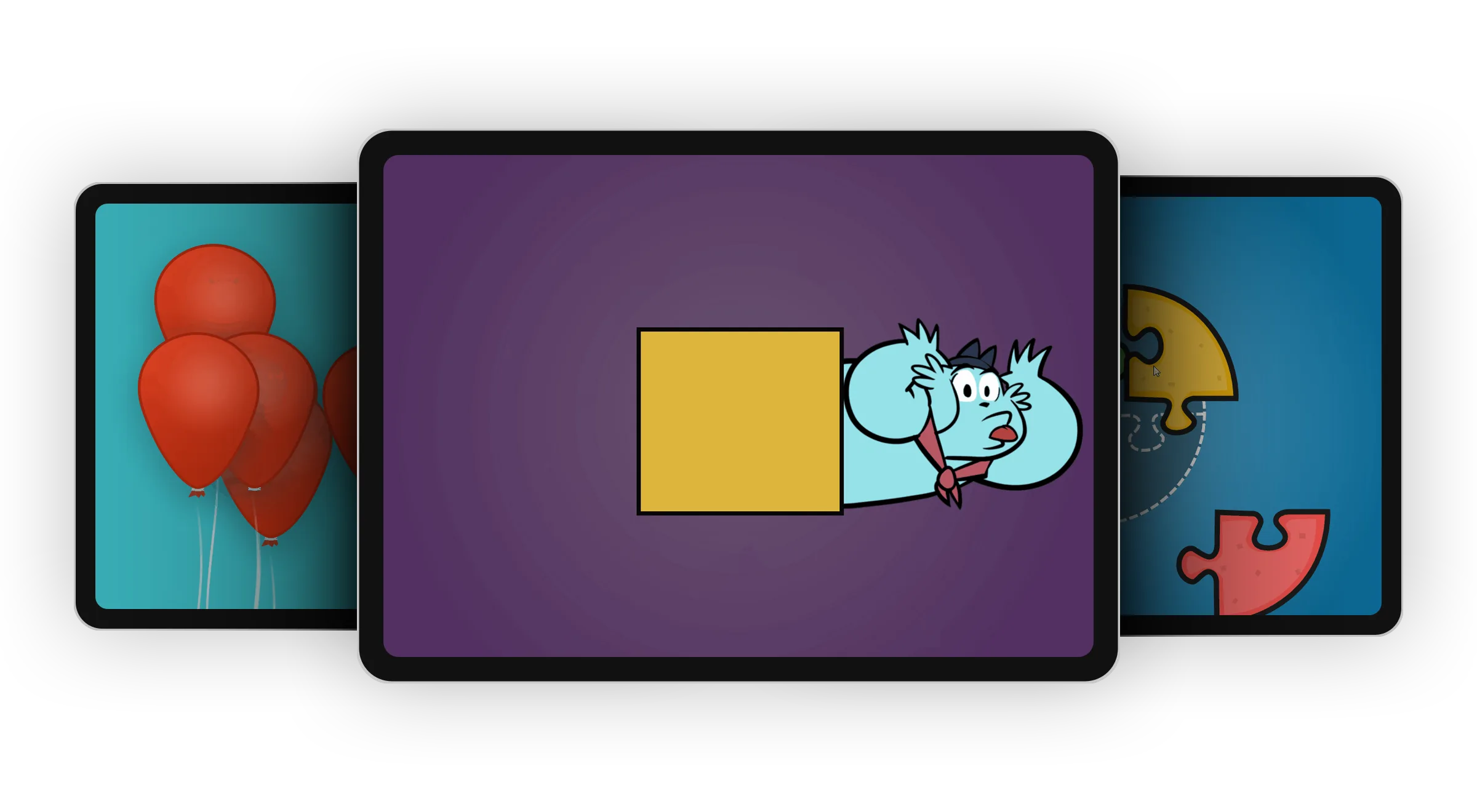
A friendly character opens the experience. With the help of moving illustrations, he explains what a computer is and how the mouse moves things on the screen. Before each skill, an animated hand and mouse demonstrate exactly what to do.

Moving the Mouse
Students move the cursor through 16 circles. The circles move as if the cursor were pushing through real objects, so every small hand movement gets a visible reaction. Once every circle has been touched, they collapse into a square, and the character uses it as a hiding place. He pops out from different sides, and students try to catch him with the cursor for 60 seconds.
Clicking
Students pop balloons by clicking them and see how many they can pop before a 60-second timer runs out.
Both the mouse-moving and clicking games end after 60 seconds, and the timer does two jobs. It turns practice into a game, like seeing how many balloons you can pop before time runs out, which keeps learning the technology fun and relaxed. It also keeps the whole introduction short, leaving plenty of time for the assessment that follows.
Clicking and Dragging
Finally, students drag the pieces of a simple 2-piece puzzle into place, then a slightly harder 4-piece puzzle. When they finish, the character comes back to congratulate them, and they go on to their first assessment.
Tablets
Students on tablets get a shorter version. It introduces what a tablet is, then teaches tapping, then tapping and dragging.
Designing It and Building It
I interviewed the teachers and led the collaborative design sessions with the whole team. I also built parts of it. I implemented the artist’s assets to create four tutorial animations, and I developed the interactive elements for three of the activities.
Outcomes
After launch, average assessment scores for Pre-K and kindergarten students in one district rose 40%. That’s what teachers had been telling us: their students knew more than their scores showed.
Reflection
The most valuable part of this project happened before any design work. Istation’s assumption that young kids are natural technology users came from inside the company. Teachers in the room every day could see what the data couldn’t.
It’s also where I first saw that data is only as good as the experience that collects it. I’ve come back to that idea in my work since.